
Unveiling the Accessibility Inspector: My Xcode Discovery in Accessibility Auditing
Originally published on Medium.
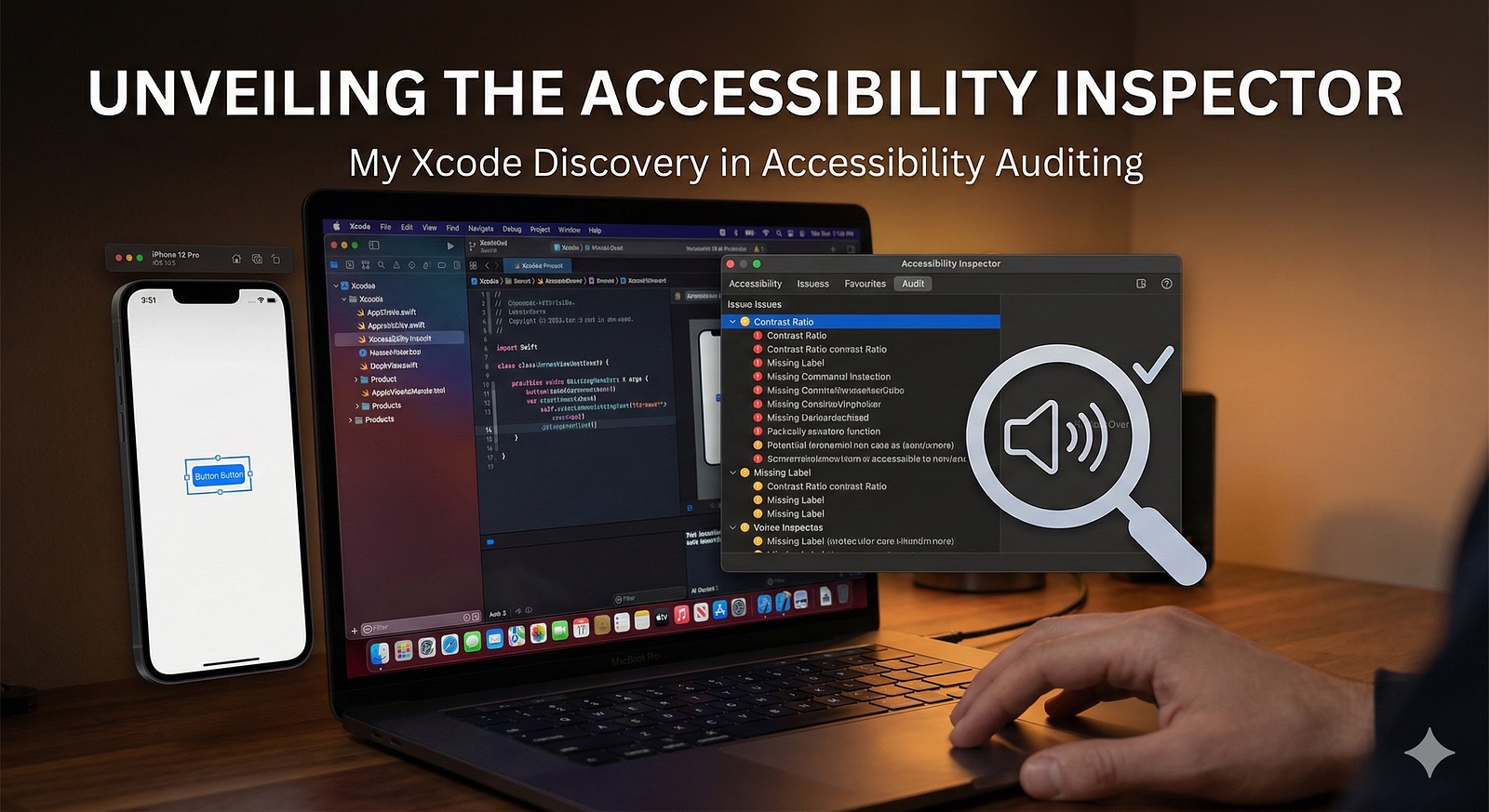
Hey there, fellow developer! Ever pushed a feature update thinking it’s solid, only to get hit with feedback that VoiceOver isn’t playing nice? That was me recently. New buttons, smooth animations, all good until a tester flagged an issue. I dove into Apple’s docs and discovered the Accessibility Inspector. It was like unlocking a secret tool that exposed all my UI oversights. If you’ve ever wondered how to catch accessibility problems early, this one’s for you.
The Accessibility Challenge: Why It Catches Us Off Guard
Accessibility isn’t optional. It’s key to making apps work for everyone, aligning with standards like WCAG, Apple’s HIG, and requirements like Section 508. But in the rush of development, it’s easy to overlook things like missing labels on elements, poor contrast ratios, or touch targets that are too small. And VoiceOver navigation? If your view hierarchy is off, it can turn a simple screen into a confusing experience for users.
I’ve been guilty of assuming “it looks good” means it’s accessible. News flash: It doesn’t always. Tools help bridge that gap, and after some research, I found the Accessibility Inspector is a favorite among Xcode users. It’s built-in, free, and spots issues right in your workflow.
My Discovery: How the Accessibility Inspector Changed My Approach
I was mid-debug when I searched for iOS accessibility testing and found this gem under Xcode’s developer tools. Why hadn’t I spotted it before? Launch it via Xcode > Open Developer Tool > Accessibility Inspector. No extra setup needed. It works with simulators or devices, letting you inspect UI elements, simulate VoiceOver, and run audits that highlight problems like unsupported Dynamic Type or missing hints. For SwiftUI projects, it integrates perfectly, even in previews.
It didn’t just fix my immediate issue. It taught me to think accessibility-first. Now it’s a staple in my process.
Hands-On Guide: Using the Accessibility Inspector Step by Step
Let’s get practical. Open Xcode (ideally version 15 or later for the latest features). Here’s how to make the most of it:
- Launch and Connect: Go to Xcode > Open Developer Tool > Accessibility Inspector. It opens as a floating window. Select your simulator or device from the target menu at the top.
- Inspect UI Elements: Run your app in the simulator, then switch to the Inspector’s “Inspection” tab. Hover over app elements. It highlights them and displays details like accessibilityLabel, accessibilityTrait (e.g., .button), value, and hint. No label on a button? That’s a quick fix, or VoiceOver users won’t know its purpose.
- In SwiftUI, for a button like:swift Button("Submit") { // Your action } It might auto-label as "Submit." For an image button, add .accessibilityLabel("Submit Form") to cover it.
- Run an Audit: In the “Audit” tab, click “Run Audit.” It checks for low contrast (target 4.5:1 per WCAG), small hit areas (at least 44x44 points), or elements ignoring large text settings. You’ll get a list of issues with suggestions, perfect for iterative fixes.
- Watch out for view order: Messy hierarchies confuse VoiceOver. Use the “Hierarchy” view to adjust for logical flow.
- Simulate Features: The “Simulation” tab lets you test with larger fonts, inverted colors, or reduced motion. See if your UI adapts without breaking. For VoiceOver, simulate gestures to check focus and announcements.
- Tie It Into Tests: Level up with XCUITests. Add checks like:
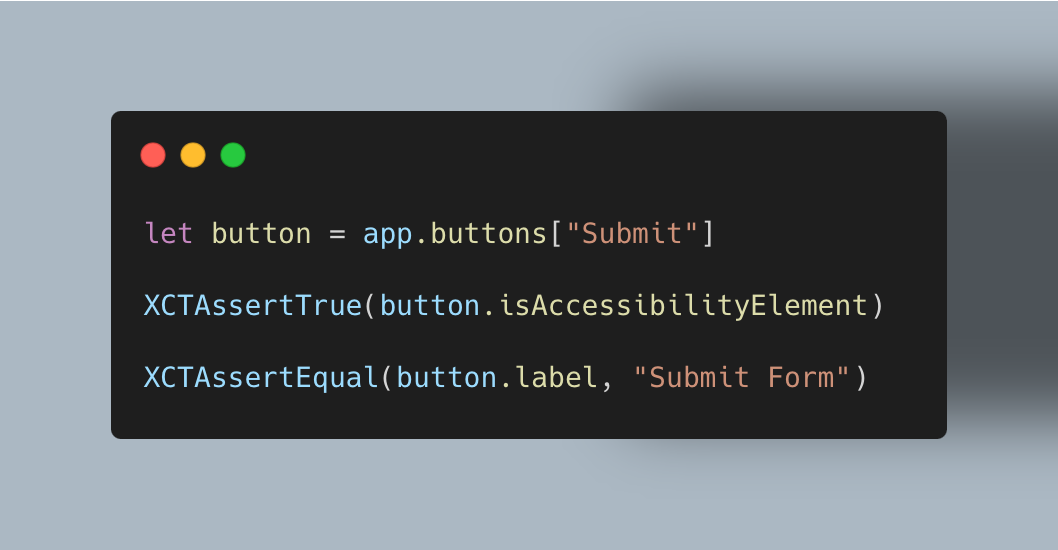
Integrate these into your CI/CD for ongoing validation.
Pro tips: Test on real devices with VoiceOver enabled. The Inspector is great for quick scans, but audio feedback is irreplaceable. For apps with web views, pair it with tools like a11yTools for extra checks.
Avoid common mistakes: Don’t rely solely on auto-traits. Custom views need explicit ones. And always handle dynamic type with UIFontMetrics or SwiftUI's scalable fonts.
Why It’s Essential (And What to Use Alongside It)
The Inspector’s popularity comes from its seamless Xcode integration. It’s fast and catches most issues early. But for comprehensive testing, combine it with VoiceOver for real-user simulations, GTXiLib for automation, or services like Level Access for in-depth audits. In my work, it’s reduced rejections and improved my code quality overall.
Final Thoughts: Make Accessibility a Habit
That’s my take on the Accessibility Inspector, a tool that’s now essential in my kit. If your app reaches users, give it a try and audit something today. It’ll make your work stronger and more inclusive.
Till the Next Byte,
British Dev’s Diary